How to Clear the Cache on an iPhone
Clear the cache on an iPhone the right way: Safari, Chrome and other browsers, app data, offloading and restarts, plus what you lose and when it is worth it.

A cache is a store of temporary files that an app keeps so it does not have to download the same things twice. Web pages, thumbnails, map tiles and video previews all end up there. Most of the time this is helpful: a site you visit often opens quicker because parts of it are already on the phone. Now and then, though, cached data goes stale, gets corrupted or simply grows larger than you would like, and clearing it becomes a sensible fix.
This guide walks through the main ways to do it on an iPhone, what each one removes, and when it is worth bothering.
When clearing the cache actually helps
Clearing a cache is not a routine maintenance task you need to do every week. iOS manages temporary files on its own and removes many of them when storage runs low. It is worth doing by hand when:
- a website keeps showing an old version of a page, or a login loop will not go away;
- a single app behaves oddly after an update, with images that never load or screens that freeze;
- the storage screen shows an app holding far more data than its size suggests;
- you want to remove browsing traces from a shared or handed-down phone.
If the phone is slow across the board, a cache clear is rarely the whole answer. A restart, a pending iOS update or a nearly full storage drive are more common culprits.
Clearing the Safari cache
Safari keeps its data in the system settings rather than inside the browser itself.
- Open Settings. On recent versions of iOS, go to Apps and then Safari; on older versions, Safari appears directly in the main Settings list.
- Tap Clear History and Website Data.
- Choose the time range if you are offered one, then confirm.
This removes history, cookies and cached files. You will be signed out of most websites, and the change syncs to other devices signed in to the same Apple Account if Safari syncing is switched on.
Removing data for one site only
If only one website misbehaves, there is a gentler option. In the Safari settings, open Advanced, then Website Data. Search for the site, swipe left on it and delete it. Every other site keeps its logins and saved preferences.
Clearing the cache in Chrome and other browsers
Third-party browsers manage their own data inside the app. In Chrome, tap the three-dot menu, choose Delete browsing data, pick a time range and tick Cached images and files. Leave cookies unticked if you want to stay signed in. Firefox, Edge and other browsers have a similar option in their privacy or data settings, usually labelled something like "clear private data".
Clearing the cache of other apps
Here iOS differs from some other phone systems: there is no universal button to empty the cache of every app. You have three practical routes.
| Method | What it removes | What it keeps |
|---|---|---|
| In-app setting | Whatever the developer chose, often media and downloads | Your account and settings |
| Offload App | The app itself | Documents and data |
| Delete and reinstall | The app and its local data, cache included | Anything stored in your account online |
Look inside the app first
Many messaging, music, podcast and social apps have a storage or data section in their own settings. It may let you remove downloaded media, clear a cache or shrink an offline library without touching anything else.
Offload or reinstall
Go to Settings, General, iPhone Storage and tap the app. Offload App frees the space taken by the app while keeping its documents, so you can reinstall later and pick up where you left off. Note that offloading keeps data, which means it usually does not clear a bloated cache. Delete App removes everything stored locally; after reinstalling, you will need to sign in again. Before deleting anything, make sure the content you care about is backed up or synced, a topic we cover in our guide to what cloud storage is and whether you need it.
Do not forget the simple restart
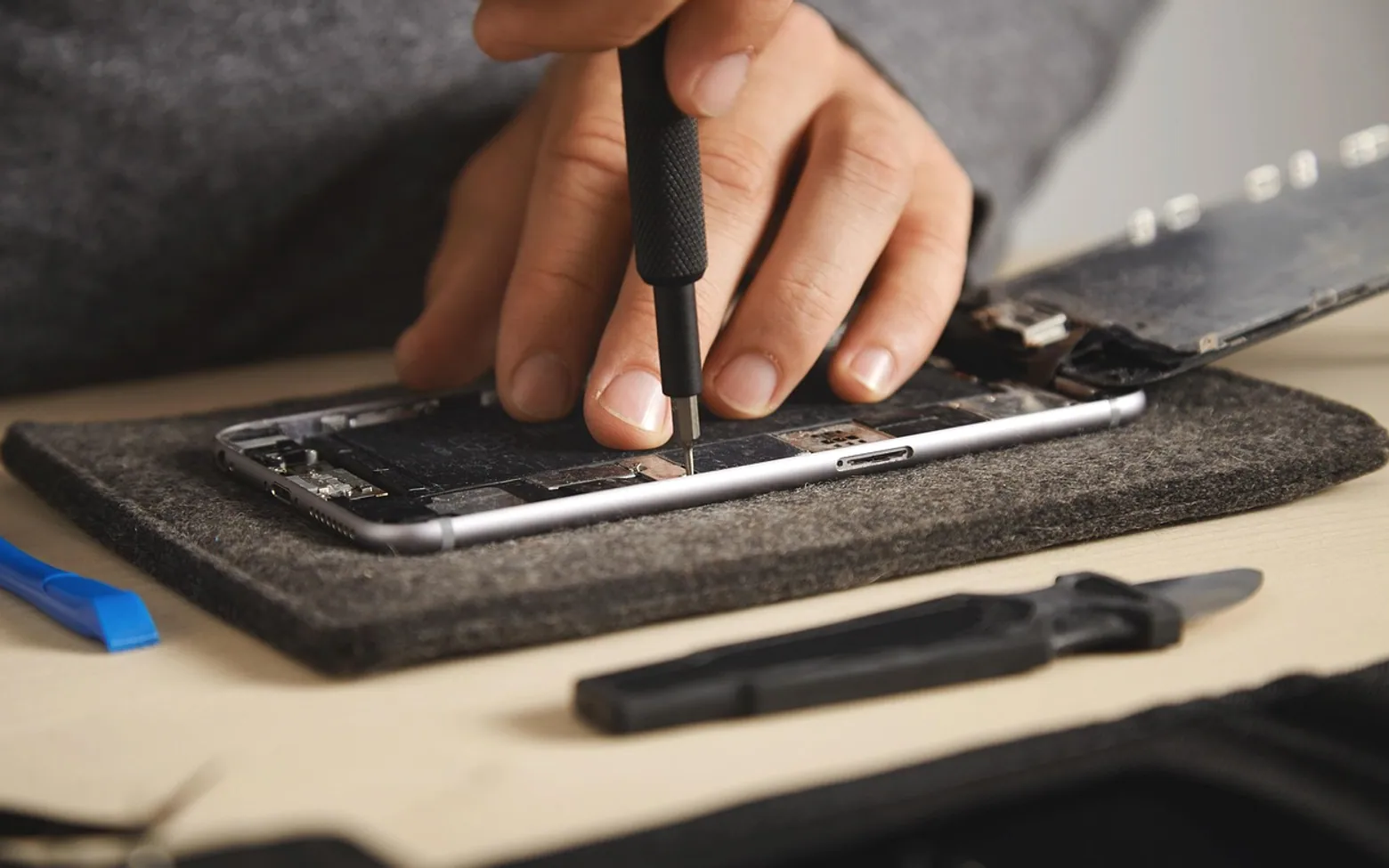
Switching the phone off and on again clears temporary memory and some short-lived files. It is not the same as clearing a cache, but it fixes a surprising number of small glitches and costs nothing. If problems persist across many apps after a restart and an update, the issue may be hardware related, such as a worn battery. In that case a repair shop or Apple itself is the next step, and our look at third-party iPhone repair services explains what to weigh up.
What to expect afterwards
- Slower first visits. Sites and apps rebuild their caches, so the first load may take a little longer.
- Fresh sign-ins. Clearing cookies logs you out. Keep your passwords handy, ideally in a password manager.
- Space that returns gradually. Caches grow back over time; that is normal and not a sign that anything went wrong.
A quick routine worth keeping
For most people, a good habit is to check iPhone Storage every few months, clear the browser when a site misbehaves, and reinstall any single app that has grown out of proportion. That keeps the phone tidy without throwing away the speed benefits a cache is there to provide.
Good places to start
 BusinessMaking the Most of Your Space: Strategies for Efficient Use of Waste Containers2 min
 iPhoneThe Rising Popularity of Third-Party iPhone Repair Services2 min
 InvestingFirst Charge vs Second Charge Bridging Loans: What’s the Difference?2 min
 ApplicationsMastering Visual Storytelling with Cinepunch Video Creation Suite2 min