Home01 Tech todayNo. 059
How to Back Up a Computer Without the Headache
Back up a computer in a way you will actually keep doing: what to save, external drives versus the cloud, built-in Windows and Mac tools, and testing a restore.
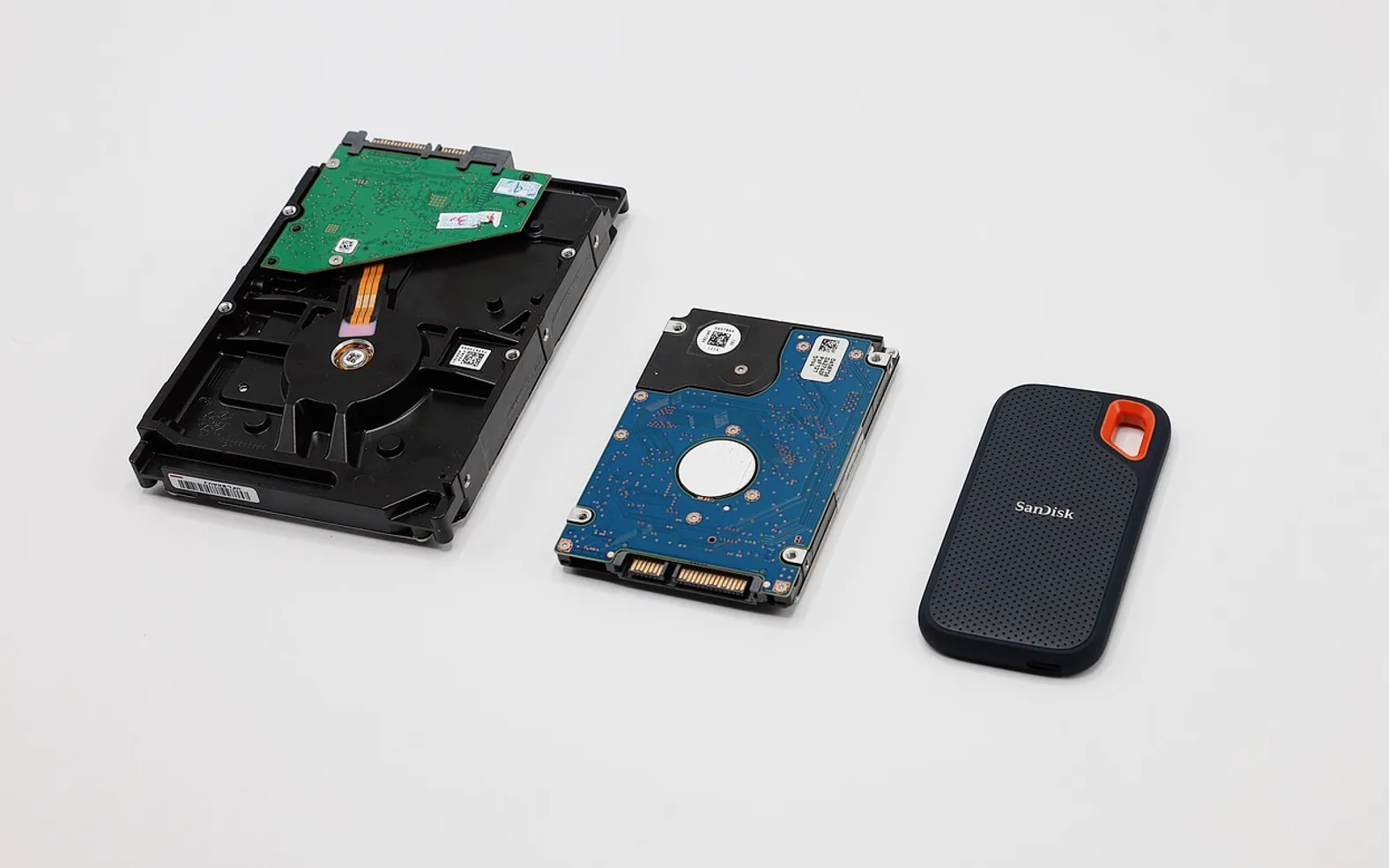
Most people know they should back up their computer. Fewer actually do it, and fewer still have ever tried to restore a file from their backup. The reason is rarely laziness. Backups sound technical, the options seem endless, and nothing bad happens on the days you skip it. Then a drive fails, a laptop is left on a train or ransomware locks a folder, and the missing backup suddenly becomes the only thing that matters.
The aim of this guide is simple: a setup you configure once and then mostly forget, because it runs without you.
Decide what needs protecting
Your operating system and programs can be reinstalled. Your own files cannot. Make a quick list of what would hurt to lose:
- documents, spreadsheets and project folders;
- photos and videos, often the largest and most irreplaceable part;
- email archives, if they are stored only on the computer;
- business records, invoices and tax files;
- settings or licence keys for software that is hard to set up again.
Knowing where these live makes everything else easier. If they are scattered across the desktop, downloads and random folders, now is a good time to gather them into a few clear locations.
The 3-2-1 idea in plain words
A widely used rule of thumb says to keep three copies of important data, on two different kinds of storage, with one copy kept somewhere else. In everyday terms, that means the files on your computer, a copy on an external drive at home, and a copy in the cloud or on a drive stored at another address. You do not need to follow it to the letter, but it explains why a single external drive sitting next to the laptop is better than nothing and still not quite enough.
Option one: an external drive
Both major desktop systems include a backup tool that works with a plain external drive.
On a Mac
Connect the drive, open System Settings, go to General and then Time Machine, and add the drive as a backup disk. Time Machine then saves hourly snapshots while the drive is connected and thins out older ones as space fills up.
On Windows
Windows offers File History, found in the Control Panel, which keeps versions of files in your user folders on an external drive. Recent versions also include a Windows Backup app that saves folders and settings to your Microsoft account. Check which of these your version offers and switch one on.
The weak point of a local drive is that it shares the same risks as the computer: fire, theft, flood or a power surge can take out both. That is why the second copy matters.
Option two: the cloud
Cloud backup services copy your files over the internet to a provider's servers. The big advantage is distance: your data survives whatever happens to your home or office. The trade-offs are speed, because the first upload can take a long time, and ongoing cost once you exceed free allowances.
Be careful not to confuse sync with backup. A synced folder mirrors changes, so if you delete or corrupt a file, the damage is copied too. Many sync services keep older versions for a while, which helps, but a dedicated backup keeps a longer history. Our explainer on what cloud storage is covers the difference in more detail.
| External drive | Cloud backup | |
|---|---|---|
| Speed of restore | Fast | Depends on your connection |
| Protection from theft or fire | Only if stored elsewhere | Yes |
| Works without internet | Yes | No |
| Ongoing effort | Plug in regularly | Mostly automatic |
Make it automatic
A backup that depends on remembering will eventually be forgotten. Turn on scheduled backups, and if you use an external drive with a laptop, attach it to a habit: every Friday afternoon, or whenever you plug in at your desk. Many people leave the drive connected to a docking station so it runs whenever the laptop is home.
Test a restore
This is the step almost everyone skips. Once in a while, pick a file, delete a copy or rename it, and restore it from the backup. Check that it opens. If you are planning something drastic, such as a clean system reinstall to rescue a slow laptop, check the backup first and confirm it holds everything you listed at the start.
Protect the backup itself
- Use encryption where the tool offers it, especially for drives that leave the house.
- Give the backup account a strong, unique password and switch on two-step sign-in.
- Disconnect an external drive when it is not in use if you are worried about ransomware reaching it.
The short version
Gather your important files, switch on the built-in backup tool with an external drive, add a cloud copy for distance, make both automatic and test a restore now and then. It takes an hour or two to set up, and after that it simply runs in the background, waiting for the day you need it.
Good places to start
 BusinessMaking the Most of Your Space: Strategies for Efficient Use of Waste Containers2 min
 iPhoneThe Rising Popularity of Third-Party iPhone Repair Services2 min
 InvestingFirst Charge vs Second Charge Bridging Loans: What’s the Difference?2 min
 ApplicationsMastering Visual Storytelling with Cinepunch Video Creation Suite2 min